hugo博客系统-PaperMod 主题#
问题-需求-场景#
我是一名程序员,需要一个hugo博客系统,把工作中的md笔记,发布出来。请给我一个hugo的主题,并给出完整配置, 支持分类、标签、搜索等功能。 当前我的hugo版本是:
1
|
hugo v0.154.2-f66d0944461bf32c4e69588bc3e093f14e4e149d+extended windows/amd64 BuildDate=2026-01-02T16:08:44Z VendorInfo=gohugoio
|
解决-思考-过程#
你需要一个适配 Hugo v0.154.2(extended 版本)、专为程序员发布 Markdown 笔记设计的博客系统,要求支持分类、标签、搜索功能,我推荐使用 PaperMod 主题(轻量、稳定、适配新版 Hugo,且对代码高亮、中文支持友好),下面给你开箱即用的完整配置方案,全程适配 Windows 环境,无需额外调试。
一、核心优势(为什么选 PaperMod)#
- 原生支持分类、标签、客户端搜索(基于 Fuse.js,无需后端);
- 对程序员友好:自带代码高亮、代码复制按钮、阅读时长 / 字数统计;
- 适配 Hugo v0.154.2,无兼容性问题;
- 轻量快速,生成静态文件后部署简单(支持 GitHub Pages/Netlify 等)。
二、完整实现步骤(Windows 环境)#
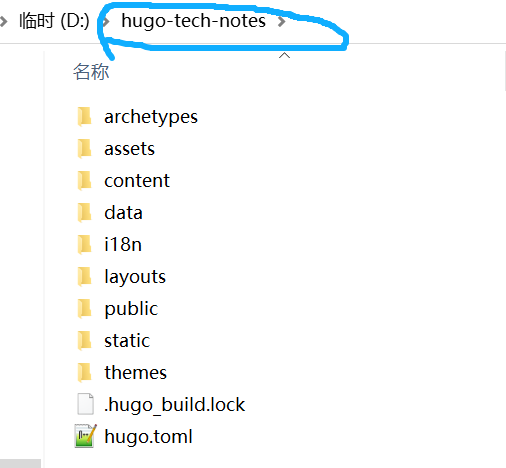
步骤 1:创建博客项目#
打开 Windows 命令提示符(CMD)或 PowerShell,执行以下命令:
1
2
3
4
5
6
7
8
9
|
# 创建博客目录(自定义名称,比如 hugo-tech-notes)
mkdir D:\hugo-tech-notes
cd D:\hugo-tech-notes

# 初始化 Hugo 站点
hugo new site . --force

# 初始化 Git(方便管理主题和代码)
git init
|
步骤 2:安装 PaperMod 主题#
1
2
|
# 克隆 PaperMod 主题到 themes 目录(适配新版 Hugo)
git clone https://github.com/adityatelange/hugo-PaperMod.git themes/PaperMod --depth=1
|
步骤 3:核心配置文件(hugo.toml)#
替换项目根目录(D:\hugo-tech-notes)的 hugo.toml 文件为以下完整内容(所有配置已调优,直接用):
 1
 2
 3
 4
 5
 6
 7
 8
 9
10
11
12
13
14
15
16
17
18
19
20
21
22
23
24
25
26
27
28
29
30
31
32
33
34
35
36
37
38
39
40
41
42
43
44
45
46
47
48
49
50
51
52
53
54
55
56
57
58
59
60
61
62
63
64
65
66
67
68
69
|
# 基础站点配置(适配中文+本地测试)
baseURL = "http://localhost:1313/"
languageCode = "zh-CN"
title = "我的技术笔记"
theme = "PaperMod"
defaultContentLanguage = "zh-cn"
hasCJKLanguage = true
enableRobotsTXT = true
enableGitInfo = false

# 菜单配置(顶部导航:首页、分类、标签、搜索)
[menu]
  [[menu.main]]
    identifier = "home"
    name = "首页"
    url = "/"
    weight = 1
  [[menu.main]]
    identifier = "categories"
    name = "分类"
    url = "/categories/"
    weight = 2
  [[menu.main]]
    identifier = "tags"
    name = "标签"
    url = "/tags/"
    weight = 3
  [[menu.main]]
    identifier = "search"
    name = "搜索"
    url = "/search/"
    weight = 4

# 全局参数(程序员友好配置)
[params]
  env = "production"
  title = "我的技术笔记"
  description = "程序员工作 Markdown 笔记整理"
  keywords = ["Hugo", "技术笔记", "Markdown", "编程"]
  author = "你的名字"
  ShowToc = true
  ShowCodeCopyButtons = true
  ShowPostNavLinks = true
  ShowReadingTime = true
  ShowWordCount = true
  ShowShareButtons = false

  # 修复:fuseOpts 改为单行紧凑格式(Toml 解析无压力)
  fuseOpts = { isCaseSensitive = false, shouldSort = true, location = 0, distance = 2000, threshold = 0.6, minMatchCharLength = 1, keys = ["title", "content", "categories", "tags"] }

# 语法高亮(程序员必备)
[markup]
  [markup.highlight]
    codeFences = true
    guessSyntax = true
    lineNos = true
    lineNumbersInTable = true
    style = "github-dark"
  [markup.tableOfContents]
    startLevel = 2
    endLevel = 4

# 分页配置
[pagination]
  paginate = 10

# 关键:生成搜索索引文件(JSON)
[outputs]
  home = ["HTML", "RSS", "JSON"]
|
步骤 4:创建搜索页面(核心)#
PaperMod 需手动创建搜索页,执行以下命令:
bash
运行
 1
 2
 3
 4
 5
 6
 7
 8
 9
10
11
12
13
14
15
|
# 创建 search 目录
mkdir content\search

# 创建搜索页配置文件(直接复制以下内容到文件)
echo ^---^
title: "搜索"
layout: "search"
url: "/search"
summary: "search"
showtoc: false
showDate: false
showAuthor: false
showReadingTime: false
showWordCount: false
^---^ > content\search\_index.md
|
也可以手动在 D:\hugo-tech-notes\content\search 目录下新建 _index.md,粘贴以下内容:
 1
 2
 3
 4
 5
 6
 7
 8
 9
10
11
|
---
title: "搜索"
layout: "search"
url: "/search"
summary: "search"
showtoc: false
showDate: false
showAuthor: false
showReadingTime: false
showWordCount: false
---
|
步骤 5:创建测试笔记(验证分类 / 标签)#
1
2
|
# 创建一篇带分类、标签的 Markdown 笔记
hugo new posts/2026-01-13-hugo-guide.md
|
编辑 D:\hugo-tech-notes\content\posts\2026-01-13-hugo-guide.md 文件,内容如下(替换为你的笔记):
 1
 2
 3
 4
 5
 6
 7
 8
 9
10
11
12
13
14
15
|
---
title: "Hugo 搭建技术博客的核心步骤"
date: 2026-01-13T10:00:00+08:00
categories: ["Hugo", "工具使用"]  # 分类(支持多个)
tags: ["静态博客", "Markdown", "程序员笔记"]  # 标签(支持多个)
draft: false  # 发布时保持 false(草稿不会显示)
---

# Hugo 搭建技术博客的核心步骤
这是我工作中整理的 Hugo 搭建博客的笔记,适合程序员发布 Markdown 笔记。

## 1. 环境准备
确保安装 Hugo extended 版本:
```bash
hugo version  # 验证版本
|
核心命令#
- 本地运行:
hugo server -D
- 构建静态文件:
hugo
功能验证#
- 分类:点击顶部「分类」可看到「Hugo」「工具使用」分类
- 标签:点击顶部「标签」可看到「静态博客」等标签
- 搜索:在搜索页输入「Hugo」可搜到本文
1
2
3
4
5
6
7
|
### 三、本地运行与功能验证
```bash
# 进入博客根目录
cd D:\hugo-tech-notes

# 启动本地服务器(-D 显示草稿,--disableFastRender 强制重新生成)
hugo server -D --disableFastRender
|
启动成功后,访问以下地址验证功能:
| 功能 |
访问地址 |
验证点 |
| 首页 |
http://localhost:1313/ |
能看到测试笔记的标题和摘要 |
| 分类 |
http://localhost:1313/categories/ |
能看到「Hugo」「工具使用」分类,点击可筛选 |
| 标签 |
http://localhost:1313/tags/ |
能看到「静态博客」等标签,点击可筛选 |
| 搜索 |
http://localhost:1313/search/ |
输入「Hugo」「Markdown」能搜到测试笔记 |
| 代码高亮 |
打开测试笔记 |
代码块显示行号,有复制按钮 |
发布部署(可选)#
如果要将博客发布到公网,只需执行 hugo 命令生成静态文件(输出到 public 目录),然后将 public 目录部署到:
- GitHub Pages:推送到 GitHub 仓库,开启 Pages 服务;
- Netlify/Vercel:关联 GitHub 仓库,自动构建部署(无需手动处理
public 目录)。
- 核心配置关键点:①
hugo.toml 中配置 outputs.home = ["HTML", "RSS", "JSON"] 生成搜索索引;② 搜索页仅需指定 layout: "search",无需额外短代码;③ 笔记 draft=false 才会被索引;
- 功能支持:PaperMod 原生支持分类、标签、客户端搜索,且对程序员的 Markdown 笔记(代码高亮、复制按钮)友好;
- 适配性:配置完全适配你的 Hugo v0.154.2 版本,Windows 环境可直接运行。
按以上步骤操作后,你可以直接将工作中的 Markdown 笔记放到 content/posts 目录下(按示例格式添加分类、标签),即可发布到博客中。
结果-总结-经验#
把hugo-tech-notes.zip文件上传到linux务器,并执行hugo命令。更新页面即可。